How-To
- Relationship Management
- Region Management
- User Management
- Subscription Management
- System Settings
- Price Management
- Billing Management
- Container Management
Relationship Management
Introduction
Relationship management is a critical part of administering the system.
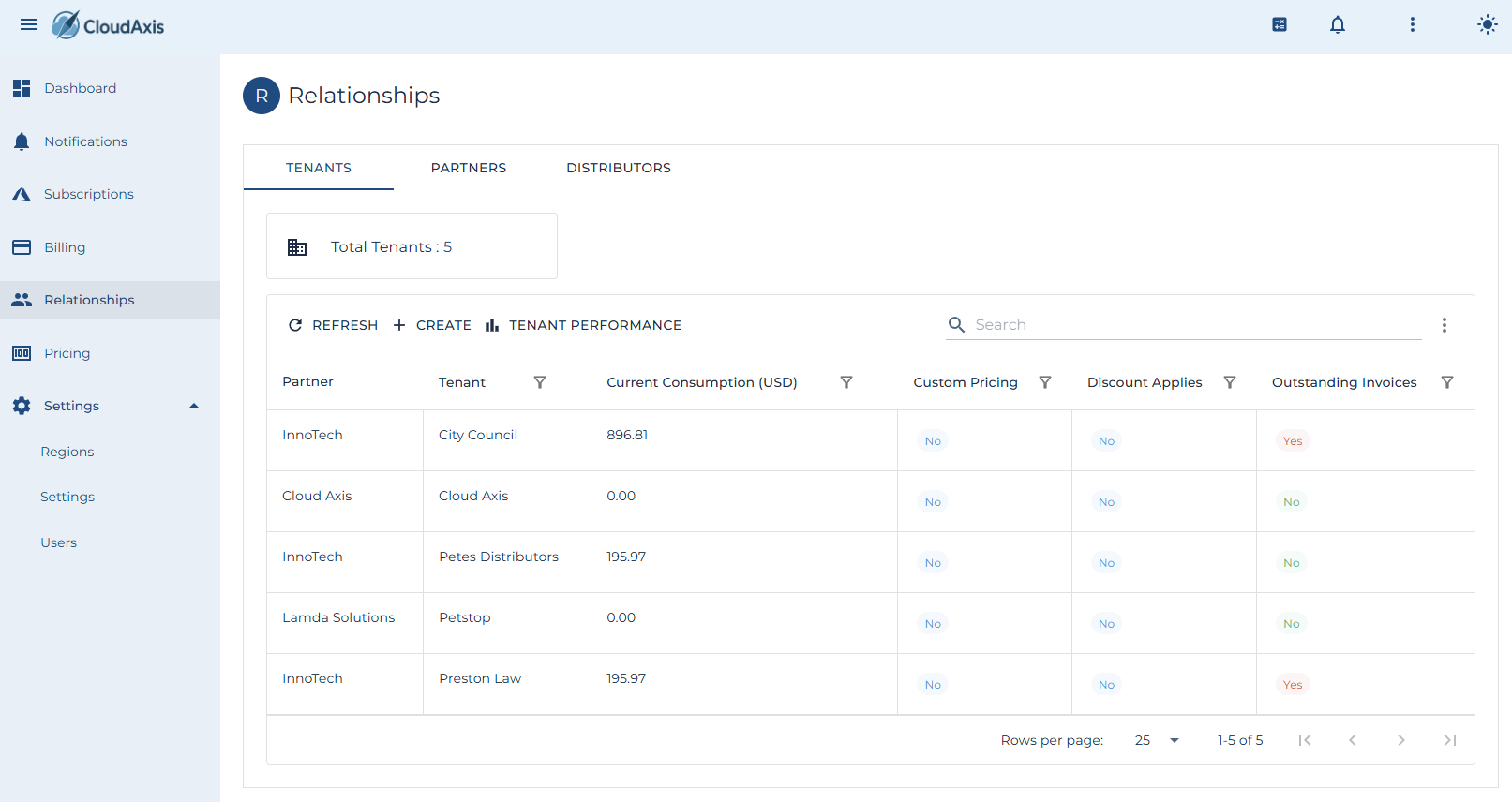
Add a Distributor
Purpose
Register a new distributor as the top-level commercial entity under the platform.
Permission Level
Platform Administrator
Steps
-
Go to Relationships→ Distributors.
-
Select Create.
-
Enter Distributor Name and details.
-
Assign a Distributor Administrator user.
-
Select Save.
Edit a Distributor
Purpose
Update distributor details or administrators.
Permission Level
Platform Administrator
Steps
-
Go to Relationships → Distributors.
-
Select the distributor you want to edit.
-
Update Name, contact information, or administrator assignments.
-
Select Save.
Delete a Distributor
Purpose
Remove a distributor permanently.
Permission Level
Platform Administrator
Steps
-
Go to Relationships → Distributors.
-
Select the distributor you want to delete.
-
Select Delete.
-
Confirm deletion.
Add a Partner
Purpose
Register a new partner under a distributor.
Permission Level
Distributor Administrator
Platform Administrator
Steps
-
Go to Relationships → Partners.
-
Select Create.
-
Enter Partner Name and details.
-
Assign Partner Administrator(s).
-
Select the Distributor this partner belongs to.
-
Select Save.
Edit a Partner
Purpose
Update partner details or administrator assignments.
Permission Level
Distributor Administrator
Platform Administrator
Steps
-
Go to Relationships → Partners.
-
Select the partner you want to edit.
-
Update details or administrators.
-
Select Save.
Delete a Partner
Purpose
Remove a partner permanently.
Permission Level
Distributor Administrator
Platform Administrator
Steps
-
Go to Relationships → Partners.
-
Select the partner you want to delete.
-
Select Delete.
-
Confirm deletion.
Add a Tenant
Purpose
Onboard a consuming organization under a partner.
Permission Level
Partner Administrator
Distributor Administrator
Platform Administrator
Steps
-
Go to Relationships → Tenants.
-
Select Create.
-
Enter Tenant Name and details.
-
Assign Tenant Administrator(s).
-
Select the Partner this tenant belongs to.
-
Select Save.
Edit a Tenant
Purpose
Update tenant details or administrators.
Permission Level
Partner Administrator
Distributor Administrator
Platform Administrator
Steps
-
Go to Relationships → Tenants.
-
Select the tenant you want to edit.
-
Update details or administrators.
-
Select Save.
Delete a Tenant
Purpose
Remove a tenant permanently.
Permission Level
Partner Administrator
Distributor Administrator
Platform Administrator
Steps
-
Go to Relationships → Tenants.
-
Select the tenant you want to delete.
-
Select Delete.
-
Confirm deletion.
Region Management
Introduction
This page covers day-to-day region administration.
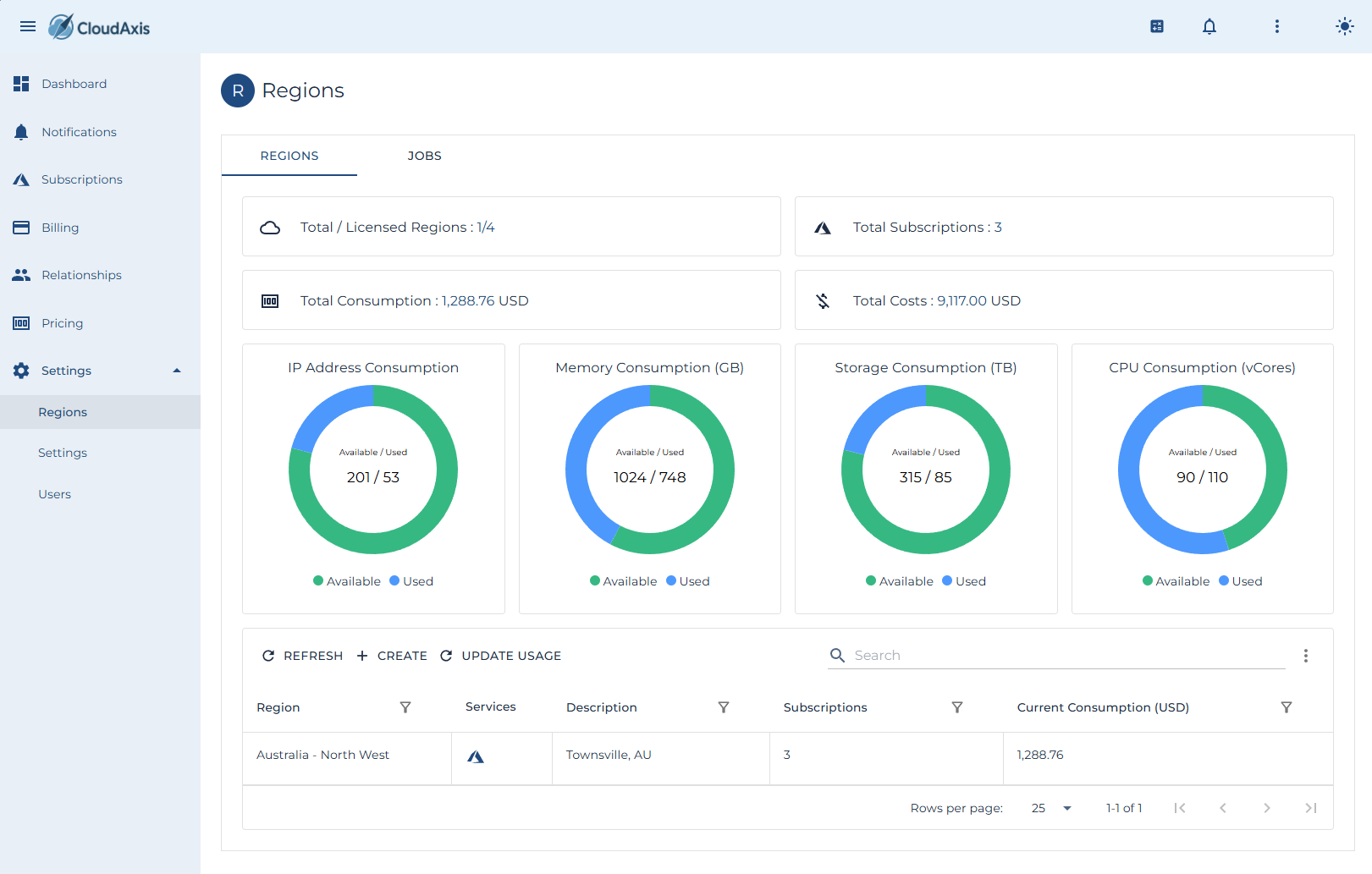
Add a Region
Purpose
Register a new region so usage can be collected and processed.
Permission Level
Platform Administrator
Steps
-
Go to Administration → Regions.
-
Select Create.
-
Enter Region Name and details.
-
Provide required endpoints and credentials.
-
Set default time zone and collection window.
-
Select Save.
Edit a Region
Purpose
Update credentials, endpoints, or metadata for an existing region.
Permission Level
Platform Administrator
Steps
-
Go to Administration → Regions.
-
Select the region you want to edit.
-
Update Region Name, credentials, endpoints, or time zone as required.
-
Select Save.
Start Usage Processing
Purpose
Manually trigger usage processing for a region.
Permission Level
Platform Administrator
Steps
-
Go to Administration → Regions.
-
Select the region you want to process.
-
Select Update Usage
-
Choose the date range (start and end).
-
Confirm and monitor the job status.
Remove a Region
Purpose
Delete a region that is no longer in use.
Permission Level
Platform Administrator
Steps
-
Go to Administration → Regions.
-
Select the region you want to delete.
-
Select Delete.
-
Confirm the deletion.
Check Region Health
Purpose
View the health and last run status of a region.
Permission Level
Platform Administrator
Steps
-
Go to Administration → Regions.
-
Open the Health or Status panel for the region.
-
Review last run time, errors, and next scheduled run.
-
Drill into failed jobs if needed.
User Management
Introduction
This page covers day-to-day user administration across the commercial hierarchy (platform, distributor, partner, tenant). It includes adding, editing, disabling, deleting users, assigning roles and scopes, and handling password/MFA resets.
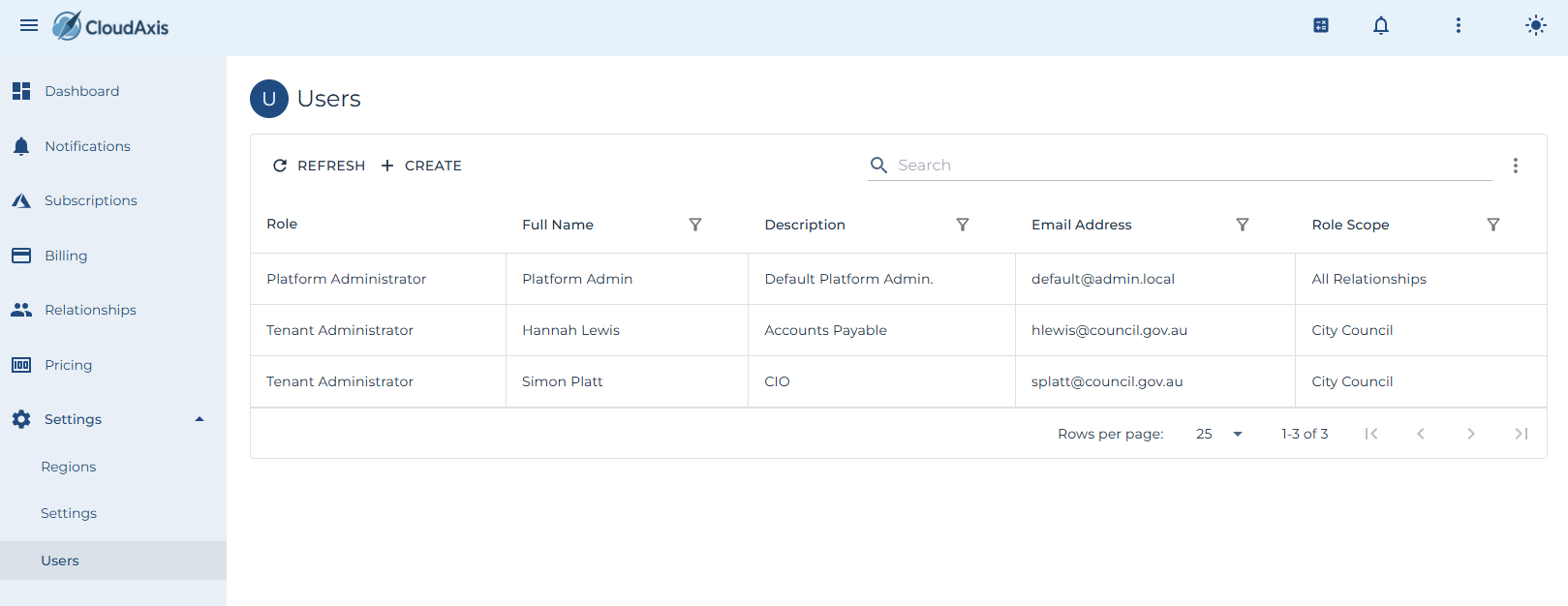
Add a new User
Purpose
Add a new user to the system.
Permission Level
- Platform Administrator
- Partner Administrator
- Distributor Administrator
- Tenant Administrator
Steps
- Go to Settings→ Users.
- Select Create.
- Enter First Name, Last Name, Email Address, and optionally Phone Number.
- Select User Role. Select Distributor, Partner, and Tenant to define the user’s scope.
- (Optional) Toggle MFA Required if your policy requires MFA at next sign-in.
- (Optional) Toggle Federated Only to prevent local password login for this user.
- Save.
Modify an existing User
Purpose
Modify an existing user’s details, role, scope, or security options.
Permission Level
- Platform Administrator
- Partner Administrator
- Distributor Administrator
- Tenant Administrator
Steps
- Go to Settings → Users.
- Select the user you want to edit.
- Update First Name, Last Name, Email Address, or Phone Number if required.
- Adjust User Role.
- Update Distributor, Partner, and Tenant scope as needed.
- Adjust toggles: MFA Required, Federated Only, Disabled, or Locked Out.
- Select Save.
Disable or Enable a User
Purpose
Temporarily block or restore user access without deleting the account.
Permission Level
- Platform Administrator
- Partner Administrator
- Distributor Administrator
- Tenant Administrator
Steps
- Go to Settings → Users.
- Select the user you want to edit.
- Toggle Disabled on to suspend, off to re-enable.
- Select Save.
Unlock a User
Purpose
Clear a lockout after failed login attempts.
Permission Level
Platform Administrator
Distributor Administrator
Partner Administrator
Tenant Administrator
Steps
-
Go to Settings → Users.
-
Select the user you want to edit.
-
Unset the Locked Out indicator.
-
Select Save.
Enforce MFA
Purpose
Require the user to register or re-register MFA at next sign-in.
Permission Level
Platform Administrator
Distributor Administrator
Partner Administrator
Tenant Administrator
Steps
-
Go to Settings → Users.
-
Select the user you want to edit.
-
Toggle MFA Required on.
-
Select Save.
Force Federated Only
Purpose
Restrict the account to federated sign-in only (no local password).
Permission Level
Platform Administrator
Distributor Administrator
Partner Administrator
Tenant Administrator
Steps
-
Go to Settings → Users.
-
Select the user you want to edit.
-
Toggle Federated Only on.
-
Select Save.
Delete a User
Purpose
Remove a user account permanently.
Permission Level
Platform Administrator
Distributor Administrator
Partner Administrator
Tenant Administrator
Steps
-
Go to Settings → Users.
-
Select the user you want to delete.
-
Choose Delete.
-
Confirm the deletion.
Subscription Management
Introduction
This page covers creating, managing and removing subscriptions in the system.
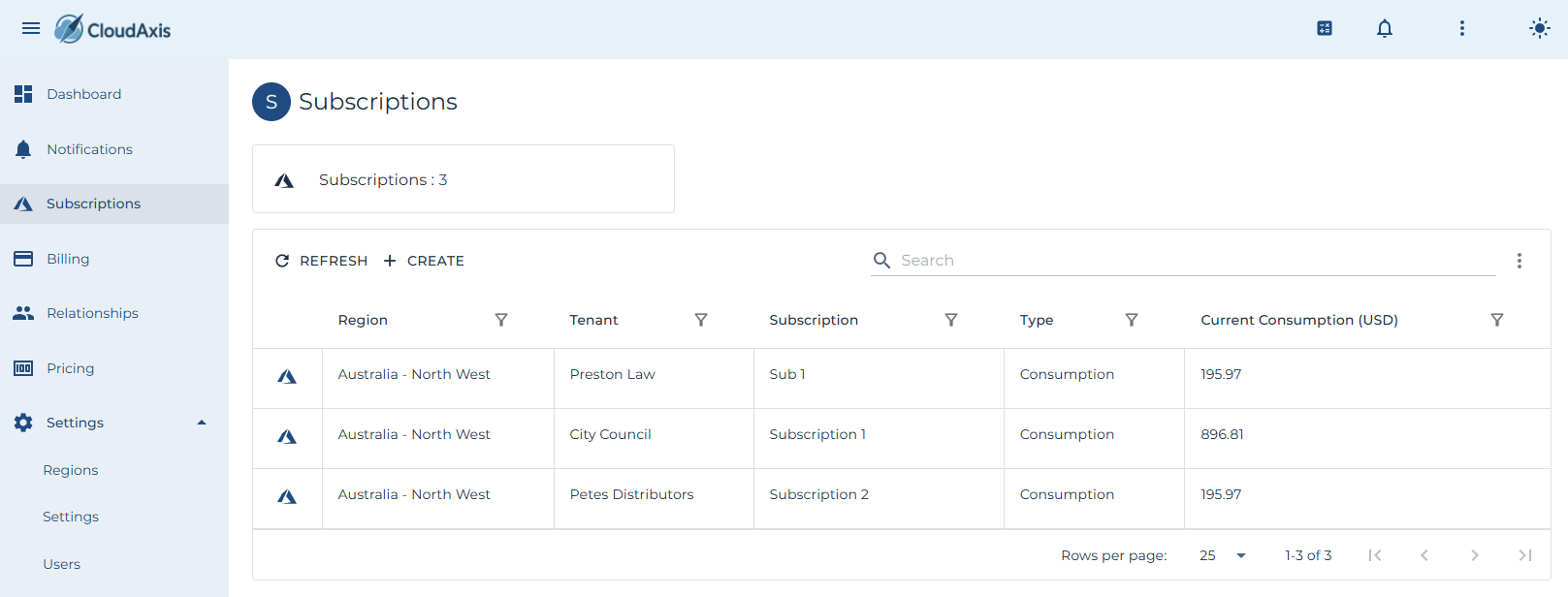
Add a Subscription
Purpose
Create a new subscription for a tenant.
Permission Level
Partner Administrator
Distributor Administrator
Platform Administrator
Steps
-
Go to Administration → Subscriptions.
-
Select Create.
-
Enter Subscription Name.
-
Select the tenant required.
-
Enter in the Entra tenant and initial owner information.
-
Select Save.
Edit a Subscription
Purpose
Update subscription detail.
Permission Level
Partner Administrator
Distributor Administrator
Platform Administrator
Steps
-
Go to Administration → Subscriptions.
-
Select the subscription you want to edit.
-
Update as required.
-
Select Save.
View Subscription Details
Purpose
See subscription usage, billing, and configuration.
Permission Level
Partner Administrator
Distributor Administrator
Platform Administrator
Tenant Administrator (limited to own subscriptions)
Steps
-
Go to Administration → Subscriptions.
-
Select the subscription to open its details.
-
Review usage metrics, plan assignments, and status.
Update Usage (Manual)
Purpose
Trigger a manual usage update for a subscription.
Permission Level
Partner Administrator
Distributor Administrator
Platform Administrator
Steps
-
Go to Administration → Subscriptions.
-
Select the subscription you want to update.
-
Choose Update Usage.
-
Enter date range if prompted.
-
Confirm.
View Subscription Summary
Purpose
Generate a usage and billing summary for reporting or reconciliation.
Permission Level
Partner Administrator
Distributor Administrator
Platform Administrator
Steps
-
Go to Administration → Subscriptions.
-
Select Summary.
-
Enter filters (tenant, date range).
-
Run summary.
-
Review usage totals and billing results.
Delete a Subscription
Purpose
Remove a subscription that is no longer required.
Permission Level
Partner Administrator
Distributor Administrator
Platform Administrator
Steps
-
Go to Administration → Subscriptions.
-
Select the subscription you want to delete.
-
Select Delete.
-
Confirm deletion.
System Settings
Introduction
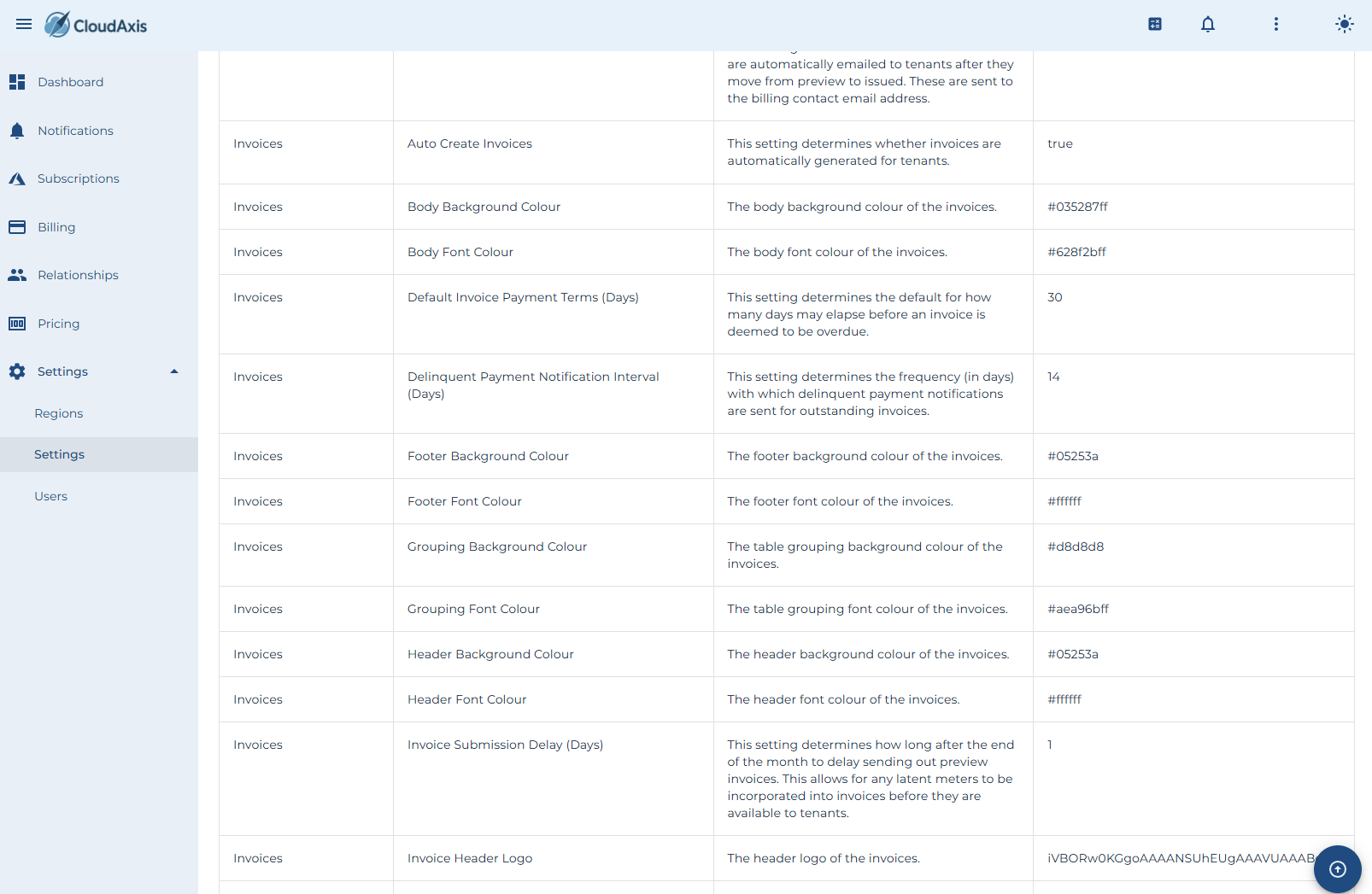
Configure global CMS behavior, including provisioning rules, billing defaults, invoice appearance, calculators, and health checks.
Permission Level
Platform Administrator
Tenant Settings
-
Partner Self Provisioning — Allow partners to create their own tenants. (Switch)
-
Distributor Self Provisioning — Allow distributors to create their own tenants. (Switch)
-
Default Tenant Currency — Set the default currency for new tenants, partners, and distributors. (Currency List)
Steps
-
Go to Administration → System Settings → Tenants.
-
Toggle or select values as needed.
-
Select Save.
Subscription Settings
-
Tenant Self Provisioning — Allow tenants to create their own subscriptions. (Switch)
-
Partner Provisioning — Allow partners to provision subscriptions for their tenants. (Switch)
-
Distributor Provisioning — Allow distributors to provision subscriptions for their tenants. (Switch)
-
Auto Created Subscription Tenant Id — Default tenant for subscriptions created automatically from platform subscriptions. (Tenant List)
-
Perform Tenant Identity Health Checks — Enable tenant identity health checks. (Switch)
-
Auto Create Missing Subscriptions — Automatically create CMS subscriptions from detected platform subscriptions. (Switch)
Steps
-
Go to Administration → System Settings → Subscriptions.
-
Adjust values.
-
Select Save.
Invoice Settings
-
Invoice Submission Delay (Days) — Delay sending preview invoices after month end. (Number Box)
-
Header Background Colour — Set invoice header background color. (Colour Picker)
-
Body Background Colour — Set invoice body background color. (Colour Picker)
-
Footer Background Colour — Set invoice footer background color. (Colour Picker)
-
Header Font Colour — Set header text color. (Colour Picker)
-
Body Font Colour — Set body text color. (Colour Picker)
-
Footer Font Colour — Set footer text color. (Colour Picker)
-
Grouping Background Colour — Set table grouping background color. (Colour Picker)
-
Grouping Font Colour — Set table grouping font color. (Colour Picker)
-
Invoice Header Logo — Upload logo for invoice header. (File Picker)
-
Invoice Payment Details — Configure invoice footer payment details. (Text Box)
-
Auto Create Invoices — Enable automatic invoice generation. (Switch)
-
Auto Email Invoices — Enable automatic emailing of issued invoices. (Switch)
-
Delinquent Payment Notification Interval (Days) — Frequency for sending delinquent notifications. (Number Box)
-
Send Delinquent Payment Notifications — Enable sending of delinquent notifications. (Switch)
-
Store Invoices In Azure Storage — Upload invoices to Azure Stack storage account. (Switch)
-
Default Invoice Payment Terms (Days) — Default overdue period. (Number Box)
Steps
-
Go to Administration → System Settings → Invoices.
-
Adjust visual, timing, and delivery settings.
-
Select Save.
User Settings
-
Tenant Self Provisioning — Allow tenants to create their own users. (Switch)
-
Partner Self Provisioning — Allow partners to create their own users. (Switch)
-
Distributor Self Provisioning — Allow distributors to create their own users. (Switch)
-
Require User Activation — Require users to activate their accounts before login. (Switch)
-
Require User Activation Code — Require activation code at first login. (Switch)
Steps
-
Go to Administration → System Settings → Users.
-
Adjust toggles.
-
Select Save.
Billing Settings
-
Default Platform Currency — Base currency for the platform. (Currency List)
-
Use Monthly Variable Pricing — Apply variable pricing based on hours in the month. (Switch)
Steps
-
Go to Administration → System Settings → Billing.
-
Adjust defaults.
-
Select Save.
Calculator Settings
-
Show To Tenants — Show the calculator to tenants. (Switch)
-
Show To Partners — Show the calculator to partners. (Switch)
-
Show To Distributors — Show the calculator to distributors. (Switch)
Steps
-
Go to Administration → System Settings → Calculator.
-
Adjust visibility.
-
Select Save.
Platform Settings
-
Report Platform Alerts — Generate CMS alerts for platform-specific health events. (Switch)
Steps
-
Go to Administration → System Settings → Platforms.
-
Toggle settings.
-
Select Save.
Job Settings
-
Job Maximum Runtime (Hours) — Maximum runtime before a job is marked as failed. (Number Box)
Steps
-
Go to Administration → System Settings → Jobs.
-
Adjust the maximum runtime.
-
Select Save.
Price Management
Introduction
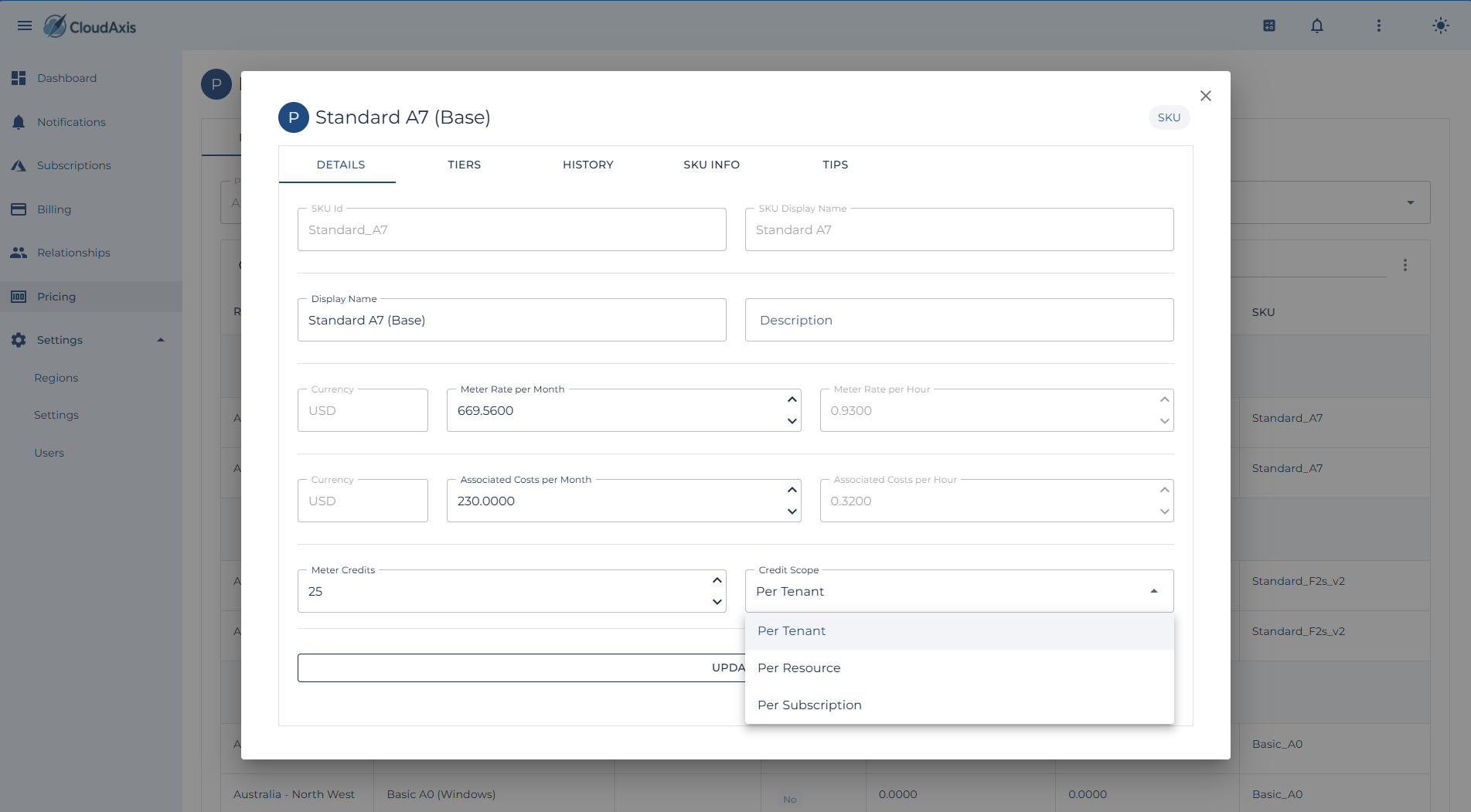
Manage all pricing constructs for the CMS. Pricing is scoped either at the Region or Tenant level. Features include SKU and meter pricing, credits, tiered thresholds, cloning price lists, applying modeled price increases, and estimating impact.
Permission Level
Platform Administrator
Create or Edit a Price List
Purpose
Define rates for a region or tenant.
Steps
-
Go to Pricing.
-
Choose Region or Tenant scope.
-
Enter a Display Name and Description.
-
Add Pricing Items:
-
Meter / SKU — Select from available meters.
-
Rate — Enter base rate.
-
(Optional) Credits — Enter credits to offset usage.
-
(Optional) Tiered Thresholds — Define usage ranges with rates.
-
-
Save.
Clone a Price List
Purpose
Quickly create a new list by copying an existing one.
Steps
-
Go to Administration → Pricing.
-
Select the price list to clone.
-
Choose Clone Price List.
-
Select target scope (Region or Tenant).
-
Update details as required.
-
Save.
Add or Edit Meter and SKU Pricing
Purpose
Set or adjust prices for specific meters and SKUs.
Steps
-
Open a Price List.
-
Select Add Meter/SKU.
-
Choose the desired Meter.
-
Enter Rate, Unit, and Description.
-
(Optional) Apply Credits or Tiered Thresholds.
-
Save.
Configure Credits
Purpose
Offset costs for specific meters, subscriptions, or tenants.
Steps
-
Open a Price List.
-
Select a Meter or SKU.
-
Enter Credit amount.
-
Save.
Configure Tiered Pricing
Purpose
Apply progressive rates based on usage ranges.
Steps
-
Open a Price List.
-
Select a Meter or SKU.
-
Add Tiered Threshold.
-
Enter From Quantity, To Quantity, and Rate.
-
Save.
Apply Price Increases (with Modeling)
Purpose
Increase pricing by percentage or fixed amount and preview the impact before applying.
Steps
-
Go to Administration → Pricing Tools → Price Increase.
-
Choose Scope (Region or Tenant).
-
Select Increase Type: Percentage or Fixed Amount.
-
Enter Increase Amount.
-
Run Model to preview impacts across meters and tenants.
-
Review modeled results.
-
Apply changes to generate updated Price List.
Estimate Costs (Estimator Tool)
Purpose
Model tenant or subscription costs using current or proposed pricing.
Steps
-
Go to Administration → Pricing Tools → Estimator.
-
Select Tenant or Subscription.
-
Choose a Price List.
-
Enter estimated usage quantities.
-
Run Estimate.
-
Review projected cost breakdown.
Delete a Price List
Purpose
Remove an obsolete price list.
Steps
-
Go to Administration → Pricing.
-
Select the price list.
-
Choose Delete.
-
Confirm.
Billing Management
Purpose
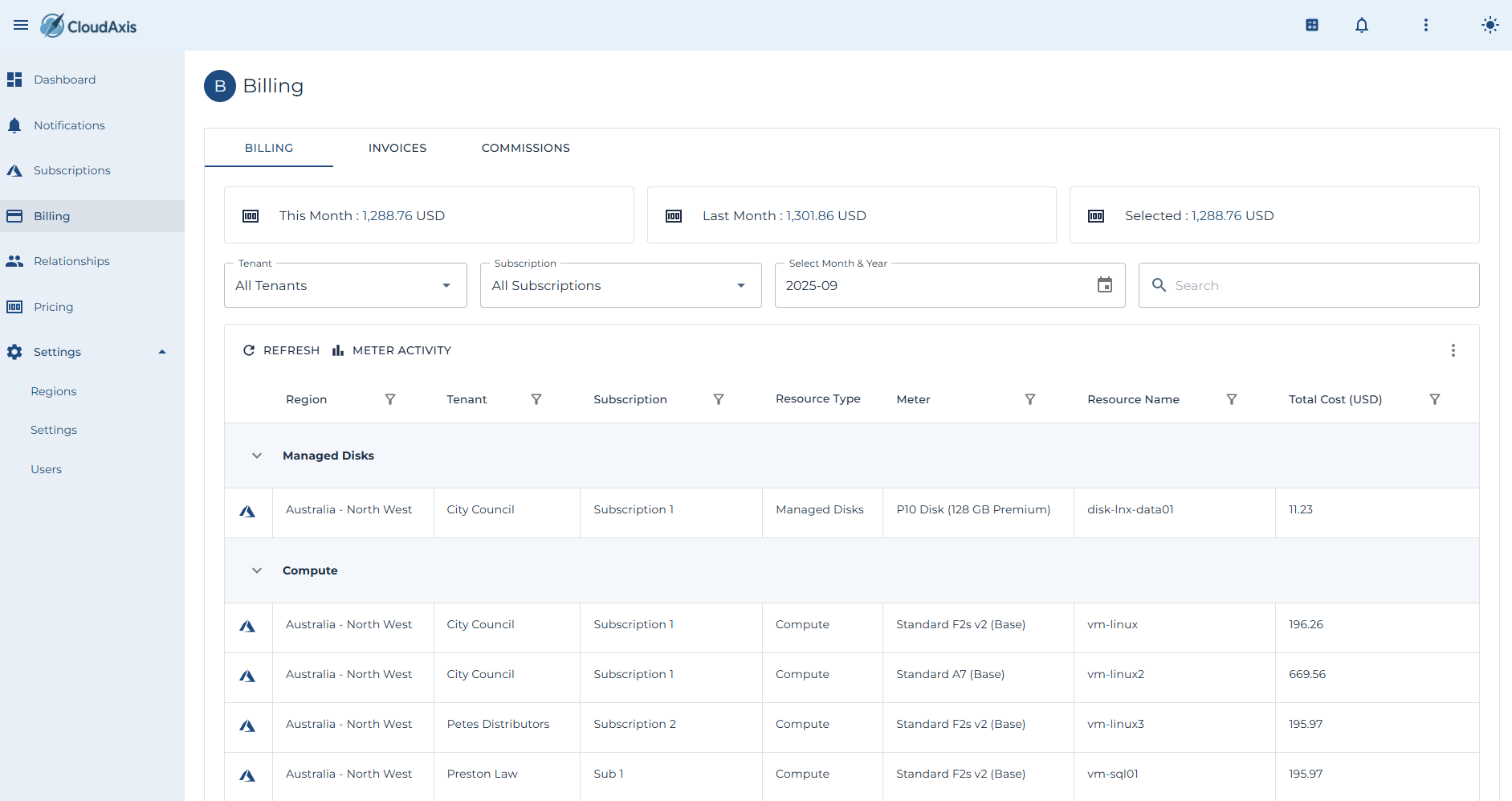
Manage invoicing and commission processing in the CMS.
Invoices capture tenant consumption and apply pricing rules.
Commissions remunerate partners and distributors based on consumption.
Permission Level
Platform Administrator
Distributor Administrator (limited to own scope)
Partner Administrator (limited to own scope)
Generate Invoices
Purpose
Create invoices for a billing period.
Steps
-
Go to Administration → Billing → Invoices.
-
Select Generate.
-
Choose Billing Period (e.g. month).
-
Select Tenant(s) or run for all.
-
Confirm generation.
View Invoice
Purpose
Review invoice details before issuing to tenants.
Steps
-
Go to Administration → Billing → Invoices.
-
Select the invoice.
-
Review consumption, pricing, discounts, and totals.
-
Verify currency and payment terms.
Issue Invoice
Purpose
Move invoice from preview to issued.
Steps
-
Go to Administration → Billing → Invoices.
-
Open the preview invoice.
-
Select Issue.
-
Confirm.
Email Invoice
Purpose
Send an issued invoice to tenant billing contacts.
Steps
-
Go to Administration → Billing → Invoices.
-
Select the invoice.
-
Choose Email Invoice.
-
Confirm.
Store Invoice in Azure Stack
Purpose
Upload invoices to configured Azure Stack storage.
Steps
-
Ensure “Store Invoices in Azure Storage” is enabled under System Settings → Invoices.
-
Generate or Issue an invoice.
-
Verify invoice appears in the storage account.
Delete an Invoice
Purpose
Remove an invoice (typically in preview status).
Steps
-
Go to Administration → Billing → Invoices.
-
Select the invoice.
-
Choose Delete.
-
Confirm.
Commission Management
Purpose
Calculate and review commissions for partners and distributors.
Configure Commission Rates
Purpose
Set commission tiers based on consumption.
Steps
-
Go to Administration → Billing → Commissions → Rates.
-
Select Distributor or Partner.
-
Add one or more Tiers: From Amount, To Amount, Percentage.
-
Save.
Generate Commission Summary
Purpose
Produce commission calculations for a billing period.
Steps
-
Go to Administration → Billing → Commissions.
-
Select Generate Summary.
-
Choose Period (month or year).
-
Confirm.
View Commission Summary
Purpose
Review commission results for a distributor or partner.
Steps
-
Go to Administration → Billing → Commissions.
-
Select the entity.
-
Review calculated totals and tier application.
Export Commission Data
Purpose
Download commission summaries for financial reporting.
Steps
-
Go to Administration → Billing → Commissions.
-
Select Export.
-
Choose format (CSV, Excel, etc.).
-
Confirm.
Container Management
Introduction
This section will outline the steps necessary to patch and maintain the CMS software delivered as containers.
Patch Docker Host
Purpose
Deploy the latest updated to the Docker host itself.
Permission Level
Docker Host Administrator
Notes
- You will likely need to enable the firewall ruleset that allows SSH access into the Docker host.
- If necessary, execute docker logs [container name].
Steps
- Connect via SSH to the host.
- Execute sudo apt update
- Execute apt list --upgradable
- Execute sudo apt upgrade -y
- Execute cd /mnt/cms
- Execute docker ps -a
Update Containers
Purpose
Update all containers in the CMS service to the latest version.
Permission Level
Docker Host Administrator
Notes
- You will likely need to enable the firewall ruleset that allows SSH access into the Docker host.
Steps
- Connect via SSH to the host.
- Execute cd /mnt/cms
- Execute docker compose down
- Execute docker compose pull
- Execute docker compose up -d
- Execute docker ps -a
- Execute docker system prune -a